Test IPTV Multi-Sport During Champions League Week: 48-Hour Strategy
September 6, 2026 · 8 min read
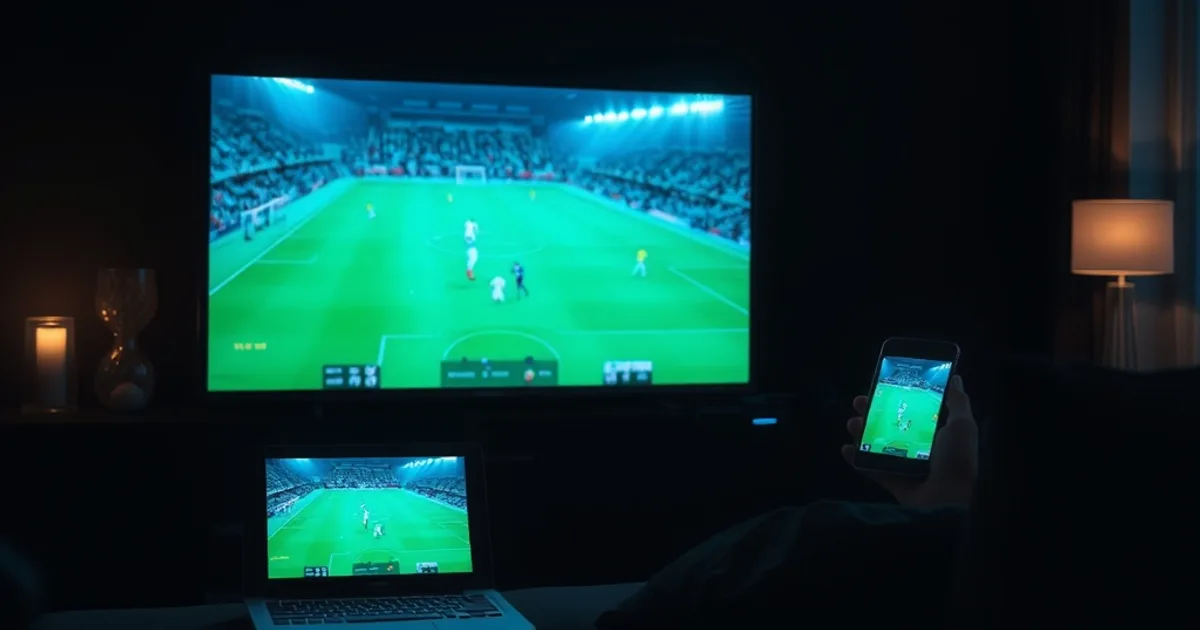
Champions League and Europa League Week 1 is live right now, on September 6, 2026 — and that's actually the wrong moment to judge an IPTV trial. Most people test a free trial by opening one stream on a quiet Tuesday afternoon, watching it play cleanly for ten minutes, and deciding the service is solid. That test tells you almost nothing about what happens on the nights that matter.
The real pressure point lands on the midweek fixture nights of September 17-18 and September 24-25, when Champions League and Europa League matches overlap and 6 to 8 games kick off within the same window across both competitions. If you're the kind of viewer who wants a match on the main screen, a second one on a tablet, and a third score-check running in the background, that's the scenario your trial needs to survive — not a single quiet stream.
This guide gives you a concrete 48-hour testing roadmap: what to check first, how to open multiple streams at once without wasting your trial period, what a genuine pass or fail looks like, and how to tell whether a stutter is your internet connection or the provider's own capacity buckling under load.
Why Multi-Sport Testing Matters (Not Just Peak Hours)
"Peak hours" and "multi-sport load" are not the same test. A provider can handle peak hours fine when everyone is watching the same single blockbuster match — that's one stream, replicated across many viewers, which is comparatively easy to cache and distribute efficiently. The harder case is when your own household is pulling multiple different matches at once: different servers, different bitrates, different routing, all competing for the same home connection and the same device resources at the same time.
That's precisely what a Champions League/Europa League midweek creates. Instead of one marquee kick-off, you get parallel matches at 18:45 and 21:00 UK time slots, plus staggered Europa League starts. If you only ever test one stream in isolation, you're validating the easy case and skipping the scenario that actually breaks trials.
If your interest is specifically Champions League coverage, our companion piece on watching the tournament through a trial covers competition-specific scheduling: /blog/iptv-free-trial-champions-league-2026-27. If La Liga also factors into your weekly viewing, see /blog/iptv-free-trial-la-liga-2026-27 for how that competition's kickoff times can compound the same midweek load.
Curious whether your setup can handle two matches at once? Ask before you commit to anything.
CL + EL Midweek Schedule: When You'll Need the Real Test (Sept 17-25)
Champions League Matchday 1 falls in the week of September 16-17, 2026, with Europa League's own matchday running the following night on September 24-25 in a typical Thursday slot — meaning the two competitions' peak nights land close together but not identically, giving you two separate stress windows rather than one.
In practice, that means: pick one Champions League midweek date (around Sept 17-18) as your first stress test, and one Europa League date (around Sept 24-25) as a second, independent stress test. Testing on both matters because the two competitions often route through different broadcast rights holders and different backend feeds — a trial that handles Champions League cleanly can still choke on Europa League's simultaneous kickoffs, or vice versa.
Mark both dates before you start your trial clock. Most free trials run on a fixed short window, so timing your sign-up so that at least one of these midweek nights falls inside your trial period is the single most important scheduling decision you'll make in this whole process.
The Three Hardest Tests: beIN MAX Multi-Angle, TNT Sports Simultaneous, DAZN Multi-Screen
Not all simultaneous streams stress a service equally. Three scenarios in particular tend to expose the gap between a trial that merely plays video and one that can actually handle real usage.
beIN MAX multi-angle streams push extra data per second because they're often carrying higher-bitrate or alternate-camera feeds alongside the main broadcast; opening one of these next to a second, unrelated match is a heavier combined load than two standard-bitrate streams. TNT Sports simultaneous coverage of overlapping kickoffs is the classic Champions League/Europa League test case — two of that night's biggest matches, both live, both demanding a full stable connection at once. DAZN multi-screen use (one match on your TV, another on a phone or tablet in the same house) tests something different again: not just your internet pipe, but whether the provider's backend will actually serve two concurrent sessions to the same account without one stream degrading to protect the other.
If you only have time to test one of these three before deciding, prioritize whichever mirrors your actual viewing habit — multi-angle if you like replay detail, simultaneous overlap if you follow two competitions, multi-screen if more than one person in your household watches independently.
Your 48-Hour Testing Roadmap: Priority Order (What to Test First)
Hour 0-2: Set up the app, log in, and run a single-stream baseline test on a non-match night. This isn't the real test, but it rules out basic installation or account problems before you spend your trial window on anything harder.
Hour 2-24: Run your network and device baseline (see the setup section below) so you know your starting bandwidth and Wi-Fi conditions independent of the provider. This is also the window to test app switching speed — how fast you can back out of one match and load another, since that's what you'll be doing constantly during overlapping kickoffs.
Hour 24-48, timed to land on your chosen Champions League or Europa League midweek date: run the actual multi-stream test described below, during the real overlapping kickoff window, not before it and not after it. Testing the day before a midweek fixture tells you nothing about how the service behaves under the specific load that only exists when matches actually overlap.
This staged approach matters because a free trial is a limited, non-renewable resource — you don't want to discover on hour 47 that you spent your entire window testing at the wrong time of day.
Setup: Device Placement, Network Baseline, App Cache Clear
Before judging any stream quality, control for the variables that have nothing to do with the provider. Clear the app's cache on every device you plan to test with — a stale cache is a common source of buffering that has nothing to do with your connection or the provider's servers, and it will contaminate your results if you skip this step.
Check device placement relative to your router. If you're testing multi-screen viewing with a phone or tablet in another room, that device's Wi-Fi signal strength — not the provider — may be the actual bottleneck. Run a basic speed test from each device's actual viewing location, not just from beside the router.
For a deeper breakdown of how to separate a genuine buffering problem from a slow-connection problem, see /blog/iptv-trial-buffering-diagnosis-speed-test. And if you're deciding between a wired and wireless setup specifically for live sports, /blog/wifi-vs-ethernet-iptv-trial-live-sports walks through when the difference actually matters versus when it doesn't.
The Live Test: Opening 3-4 Streams Simultaneously, Buffer Detection, Switch Speed
During your chosen overlapping-kickoff window, open your main match on your primary screen first and let it stabilize for two to three minutes. Then, one at a time — not all at once — open a second match on a second device, then a third on a third device if you have one, giving each addition a minute or two to settle before adding the next. This staggered approach lets you identify exactly which additional stream, if any, is the one that causes problems, rather than getting a single confusing crash of everything at once.
Watch specifically for buffering that appears only after you add the second or third stream — that's the signal you're testing for. A stream that was smooth alone and starts stuttering only once a second match opens elsewhere in your house points at either your home bandwidth or the provider's per-account concurrent-stream limit, not a general service problem.
Also time how long it takes to switch from one match to another on the same device — tapping between two live games during a stoppage or a lull. Genuine multi-sport usability depends as much on switch speed as on raw stream stability; a service that plays perfectly but takes 15-20 seconds to reload a different match every time isn't actually usable the way you need it to be on a night with six simultaneous kickoffs.
If you're testing this as part of a shared household setup rather than solo, our dedicated household concurrent-streams guide covers the account and device-limit side of this in more depth: /blog/test-iptv-concurrent-streams-household-setup.
Reading Your Results: Pass/Fail Signals for Commitment
A pass looks like this: all your simultaneous streams play without buffering that lasts longer than a couple of seconds, switching between matches takes only a few seconds, and quality doesn't visibly downgrade on any stream once you add the second or third. If that's what you saw during your actual overlapping-kickoff test window, you have a genuine, real-world result — not a guess based on a quiet-hour test.
A fail looks like this: streams that were fine alone start stuttering as soon as a second or third stream opens elsewhere in the house, video quality visibly drops when load increases, or switching between matches becomes slow and unreliable specifically during the overlap window (but was fine outside it). That pattern — fine alone, degraded under simultaneous load — is the specific signal this whole test exists to catch, and it's exactly what a single-stream, quiet-hour test would have missed entirely.
Before deciding either way, it's worth checking how the provider's support responds if something does go wrong mid-match — a service that plays well but has no one to help you at 21:15 on a Tuesday is a different risk profile than one that plays imperfectly but resolves things fast. See /blog/test-iptv-customer-support-free-trial for how to test that specifically.
Ran the 48-hour test and it held up under simultaneous matches? Here's what plans look like next.
If It Fails: Troubleshooting in Real-Time (ISP Throttle vs Provider Overload)
If you hit buffering under multi-stream load, the first thing to isolate is whether it's your ISP or the provider. Close every stream except one and see if that single stream also degrades during the same time window — if it does, and it didn't earlier in your baseline test, your ISP may be throttling or congesting at that specific hour (common during peak evening broadband usage in many areas), which is a connection issue, not a provider issue.
If the single remaining stream plays cleanly but adding back a second stream immediately causes buffering on one or both, that points toward either your home router struggling to handle multiple concurrent video streams, or the provider itself hitting a per-account or per-server capacity limit during the overlap window. The distinction matters because only one of those two is something the provider can actually fix.
A practical real-time check: if you have mobile data available, try loading the second stream over your phone's cellular connection instead of home Wi-Fi. If it plays cleanly there but not on your home network, the bottleneck is your home connection or router, not the provider. If it still stutters on cellular data too, that's a stronger signal the provider's own capacity is the limiting factor during that specific overlapping kickoff window.
Frequently asked questions
Why not just test during a normal single-match evening instead of waiting for an overlap night?
A single-match test only tells you the service can deliver one stream cleanly, which most providers can do. The specific failure mode this guide targets — degradation only under simultaneous multi-stream load — only shows up when more than one match is actually running at once, so testing on a quiet night simply won't surface it either way.
How many streams should I actually try to open at once?
Start with two and add a third only if the first two are stable. Jumping straight to four streams at once makes it hard to tell which addition caused any problem you see, whereas adding them one at a time isolates the exact point where things start to degrade.
Does a trial's stream limit affect this test?
Yes — most services cap how many devices can stream simultaneously on one account, trial or paid. If you hit that cap, the second or third stream may simply refuse to start rather than buffer, which is a different (and more predictable) limitation than a genuine load problem. Confirm the concurrent-stream policy before assuming a refusal is a performance failure.
What if my results are different on Champions League night versus Europa League night?
That's a useful result, not a contradiction. The two competitions can route through different feeds or rights holders, so a provider can genuinely perform differently between them. If you can only rely on one night's result, weight it toward whichever competition you actually watch more.
Is a brief buffer at kickoff itself (not during simultaneous load) a red flag?
Not necessarily — a short buffer in the first 30-60 seconds as a stream's bitrate stabilizes is common across most services and providers, trial or paid. The signal to watch for is buffering that appears specifically after you add a second or third simultaneous stream, several minutes into an otherwise stable watch.